Always connect from inside the Haldex Controller app. Keep the iOS or Android Bluetooth settings closed during pairing.
Turn the ignition on.
Open the Haldex Controller app. On first launch, allow all the permissions the app requests.
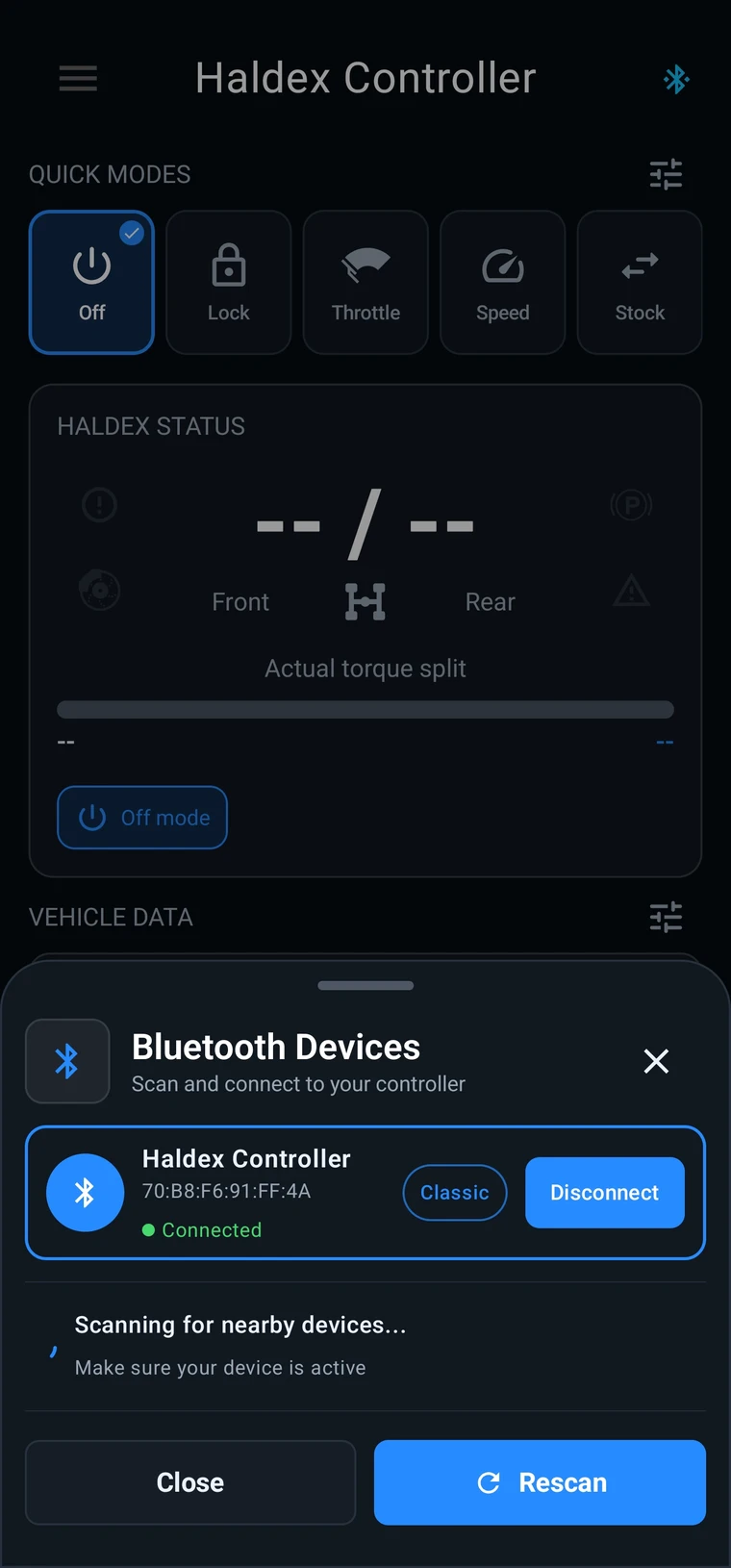
The Bluetooth Devices screen should open automatically on first launch. If it doesn’t, tap the Bluetooth icon at the top right of the main screen.
The app starts scanning automatically. When Haldex Controller appears, tap it.
Wait for the app to connect.
Bluetooth Devices screen
Check the connection
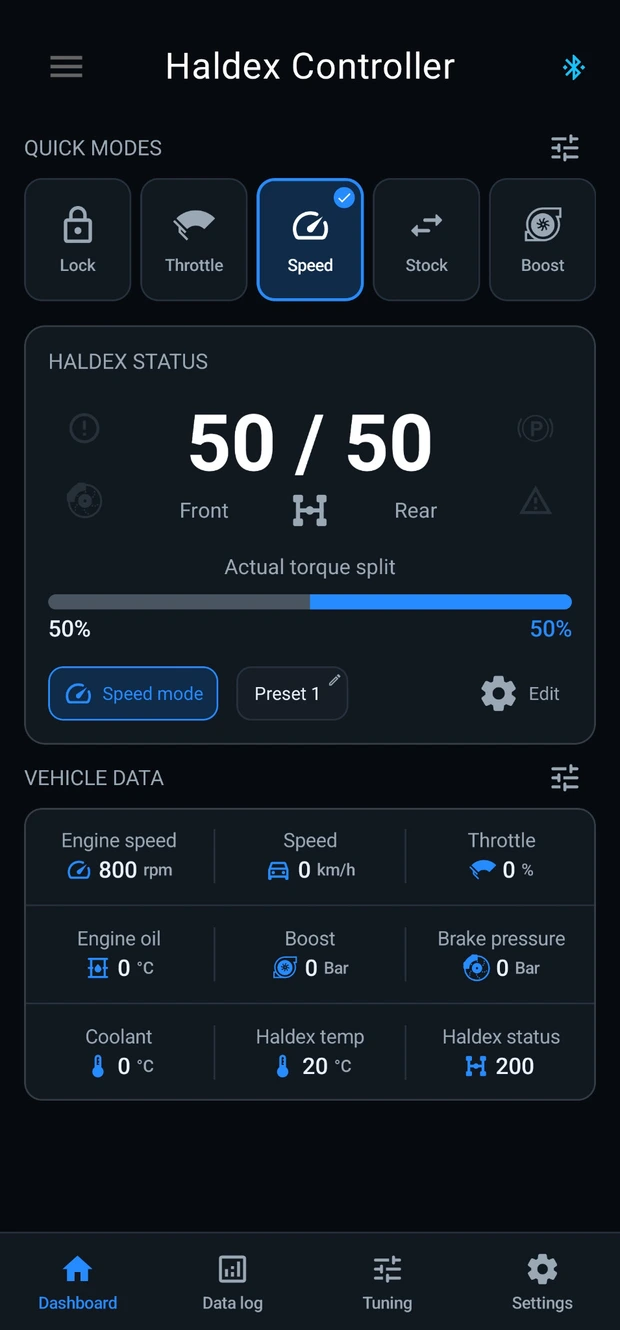
A pop-up says Connected to and shows the controller’s Bluetooth MAC address. The main screen shows data and the Bluetooth icon at the top right turns blue.
Red — No connection
Orange — Connecting
Blue — Connected
Connected app dashboard
Earlier Bluetooth hardware
First-release controllers up to and including serial HDC2019090 support one Bluetooth type, either Classic or BLE. Phone compatibility depends on which type the controller supports.
Controllers after HDC2019090 support both Bluetooth Classic and BLE.
If you’re prompted for a PIN while connecting an older controller, enter 1234.
Controller not found
Check that the ignition is on.
Check that the controller is connected to its wiring.
Open Bluetooth Devices in the app and tap Rescan.
If you still can’t find the controller, contact support with the controller serial number and your phone model.