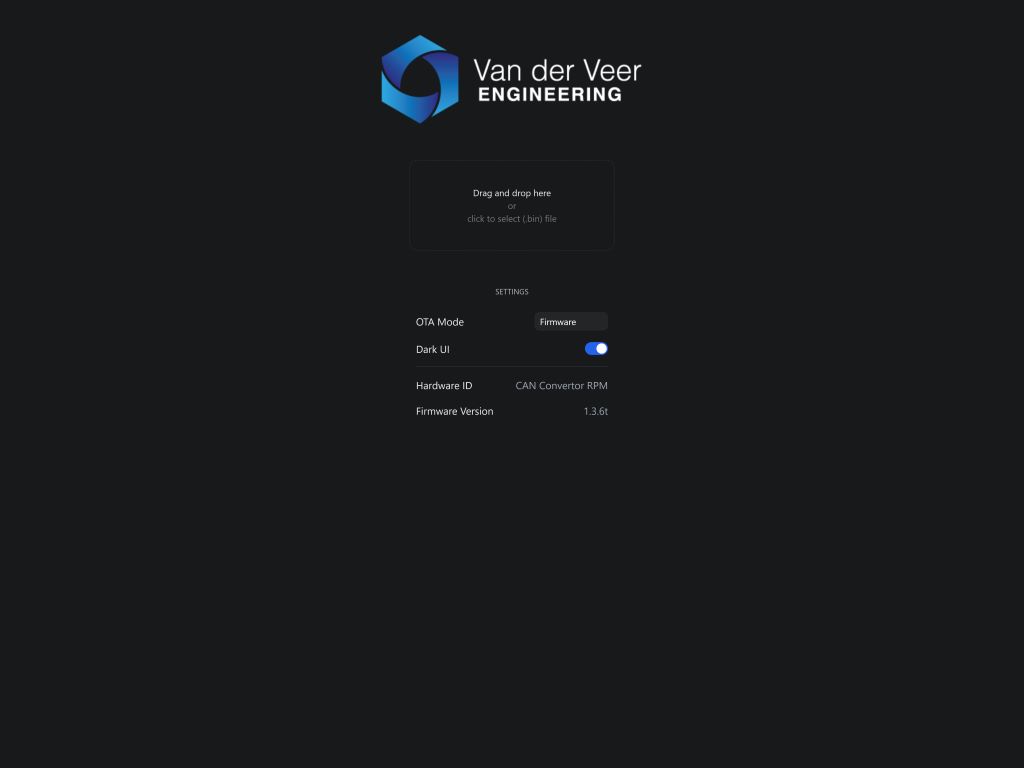
Use a Windows PC or laptop with Wi-Fi and make sure the convertor has a stable power supply. Check the model, serial number and installed versions in the web interface. If you have an older unit or cannot confirm that the package applies to your unit, ask support to confirm compatibility before flashing.
Keep power and Wi-Fi connected while an upload is in progress. Selecting or dropping a file starts the update automatically.
Confirm that Hardware ID shows CAN Convertor RPM. Set OTA Mode to Firmware.
Choose or drop the main firmware .bin file for your version. Wait for Update Successful.
If the computer does not reconnect to the convertor automatically, select the convertor’s Wi-Fi network again.
Update the web interface
Open Update again and choose LittleFS / SPIFFS in OTA Mode.
Choose the corresponding CANConvertorRPM.spiffs-…bin file for the same version. Wait for Update Successful.
Reconnect to the convertor if needed. Open Home or Information and check the firmware and filesystem versions.
If the updater reports an error or the device stops responding, contact support with the model, serial number, file name and what the updater displayed.